Submit a new venue and add one a playing field to it. This guide covers venue details, contact information, sports and amenities, and field setup, from the first entry to field submission.
Watch: Create a new venue and add a field
Before you begin
- You'll need an account in Director Center with permissions to access Venue Management.
- Have this ready so you don't have to stop partway through: the venue name and full address, a contact (name, phone, email), the sports played at the venue, and each field's name, category, map location, and dimensions.
Venue Management
1. Click on Venue Management in the main/left-hand navigation menu.
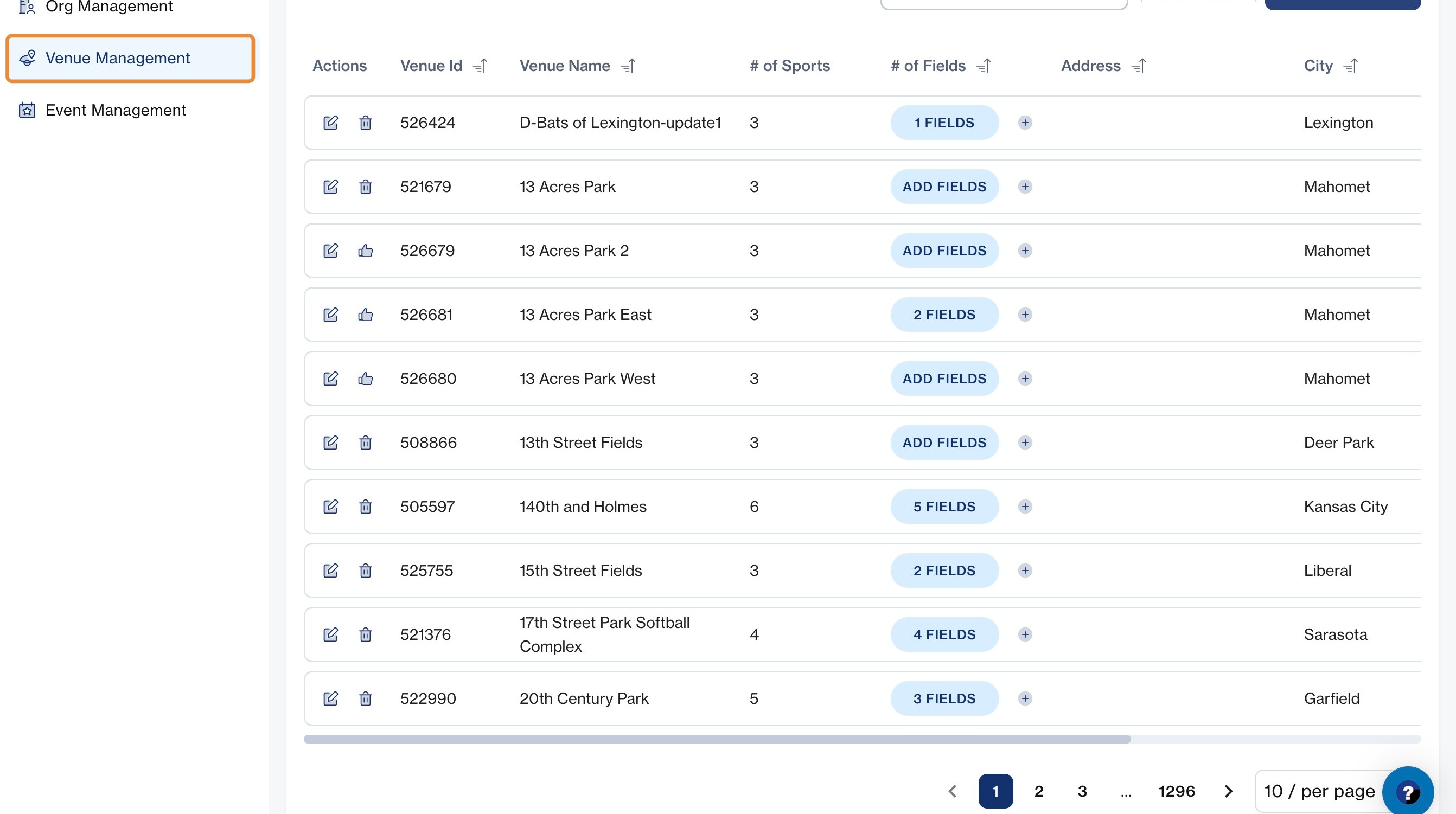
New Venue Location
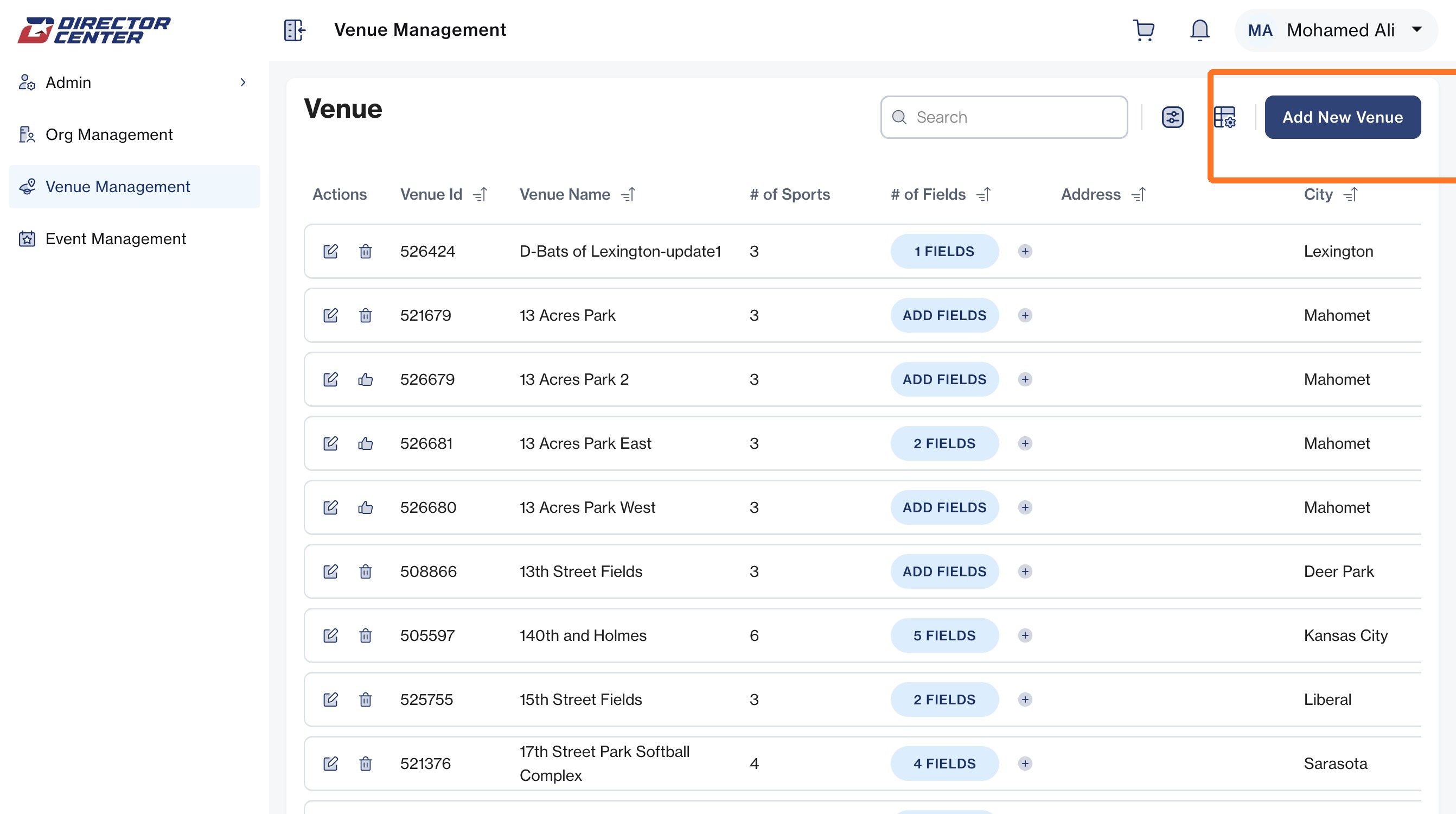
2. Click "Add New Venue"... a drawer will expand on your right-hand-side of the screen
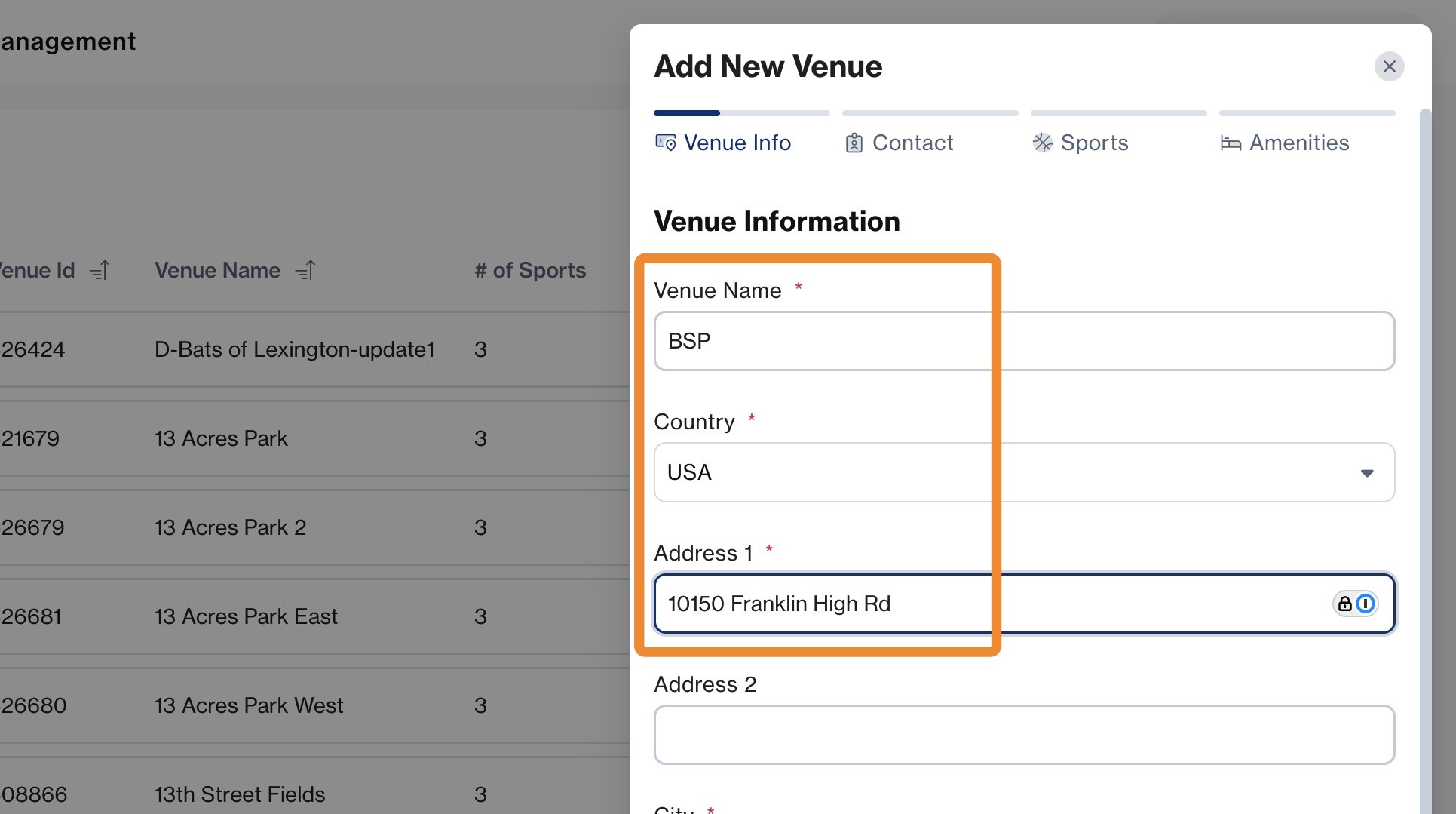
3. Enter the Venue Name, Country and Street Address
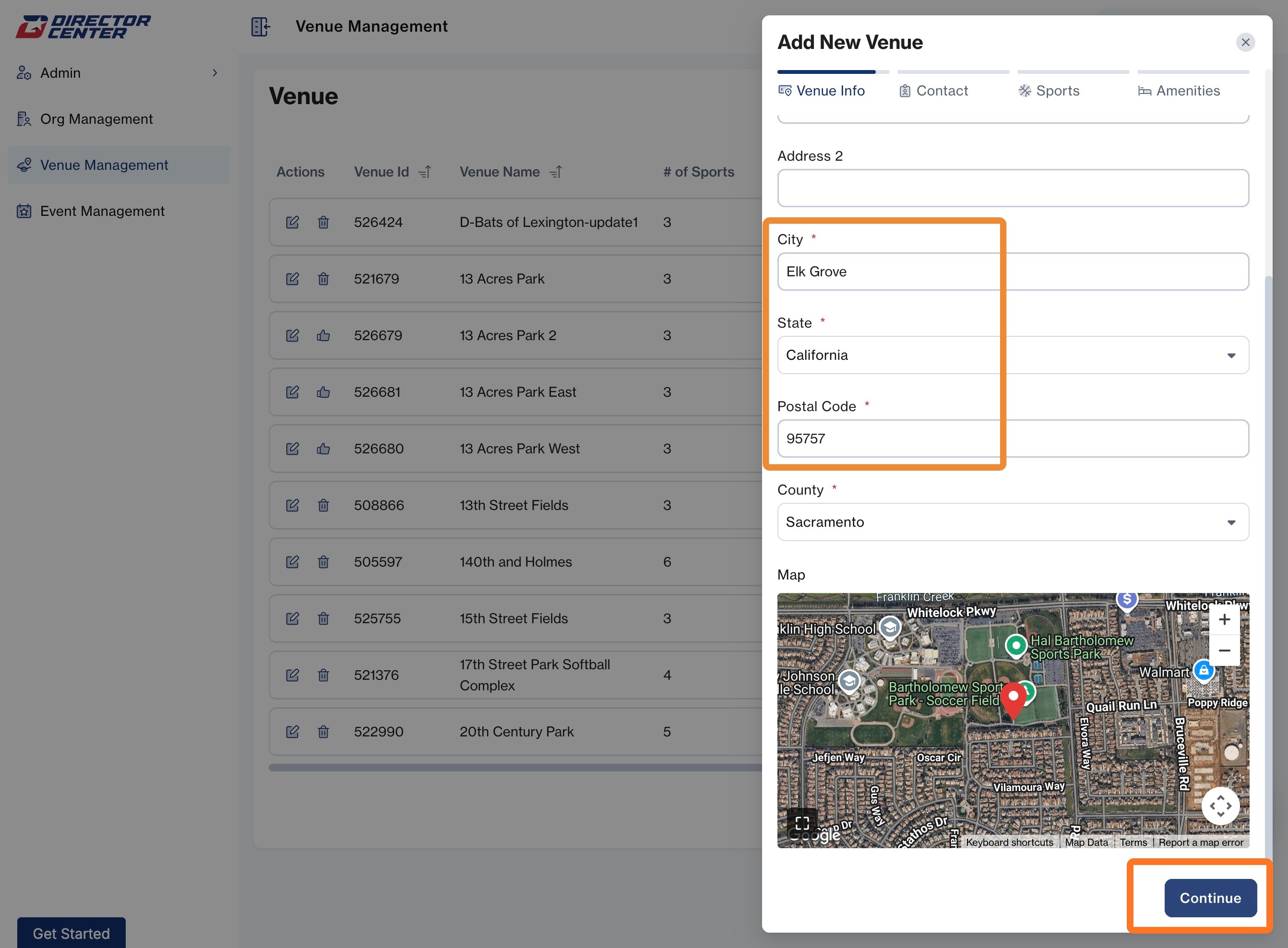
4. Enter the City, State, and Postal Zip Code, then click Continue
Contact Information
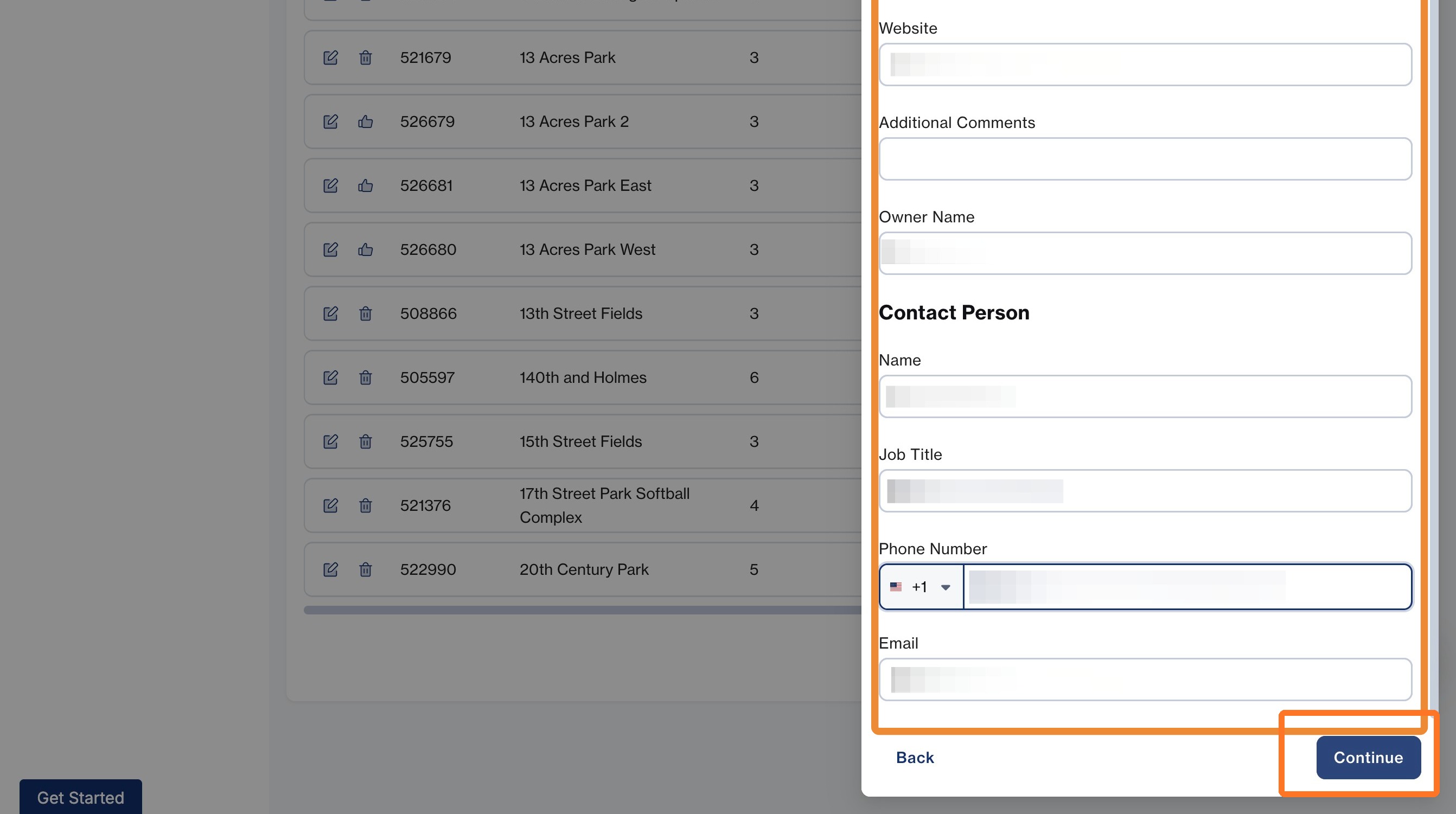
5. Enter the Contact info then click Continue
Sports and Amenities
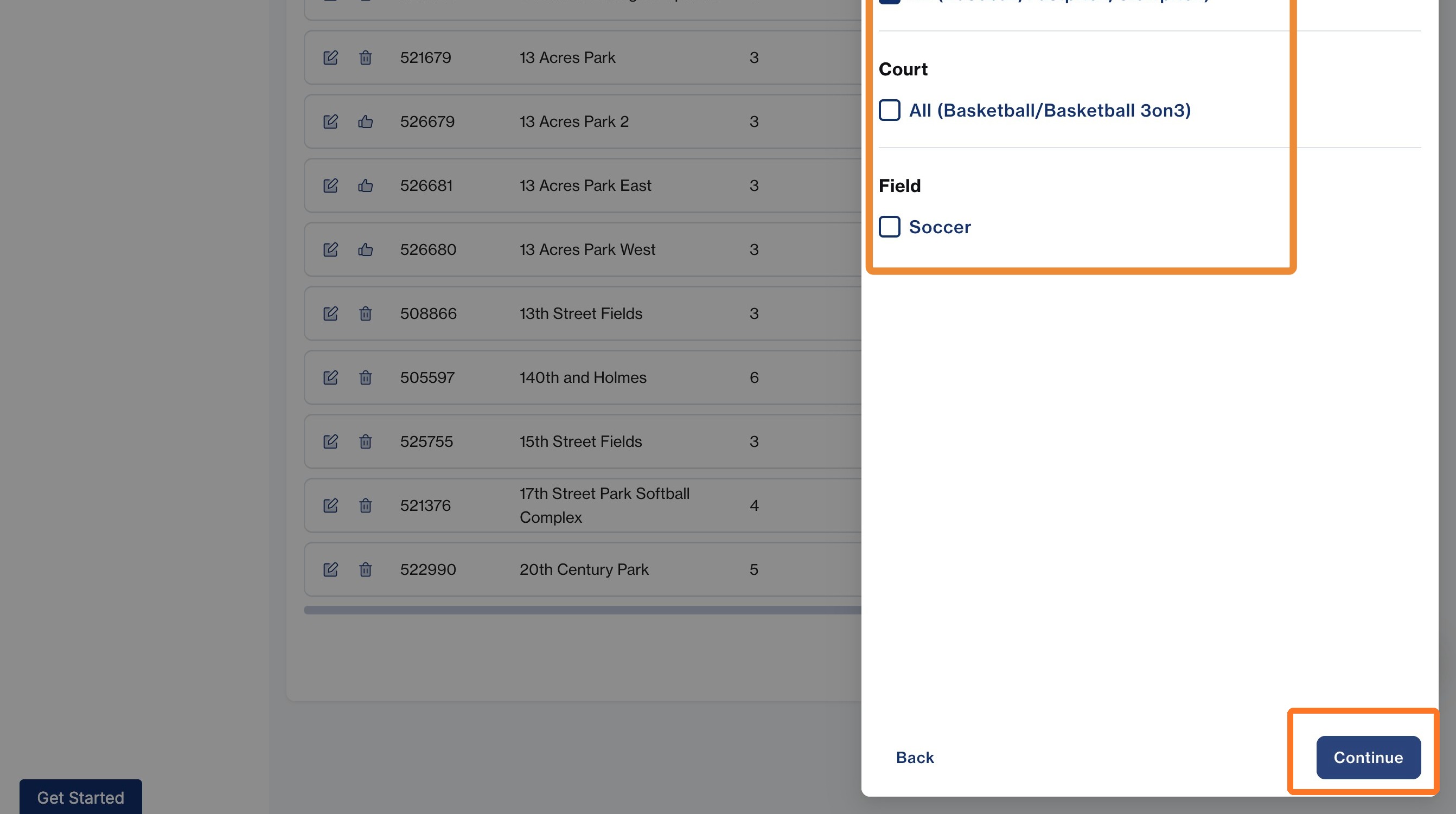
6. Mark the checkboxes for the available Venue Sports then click Continue
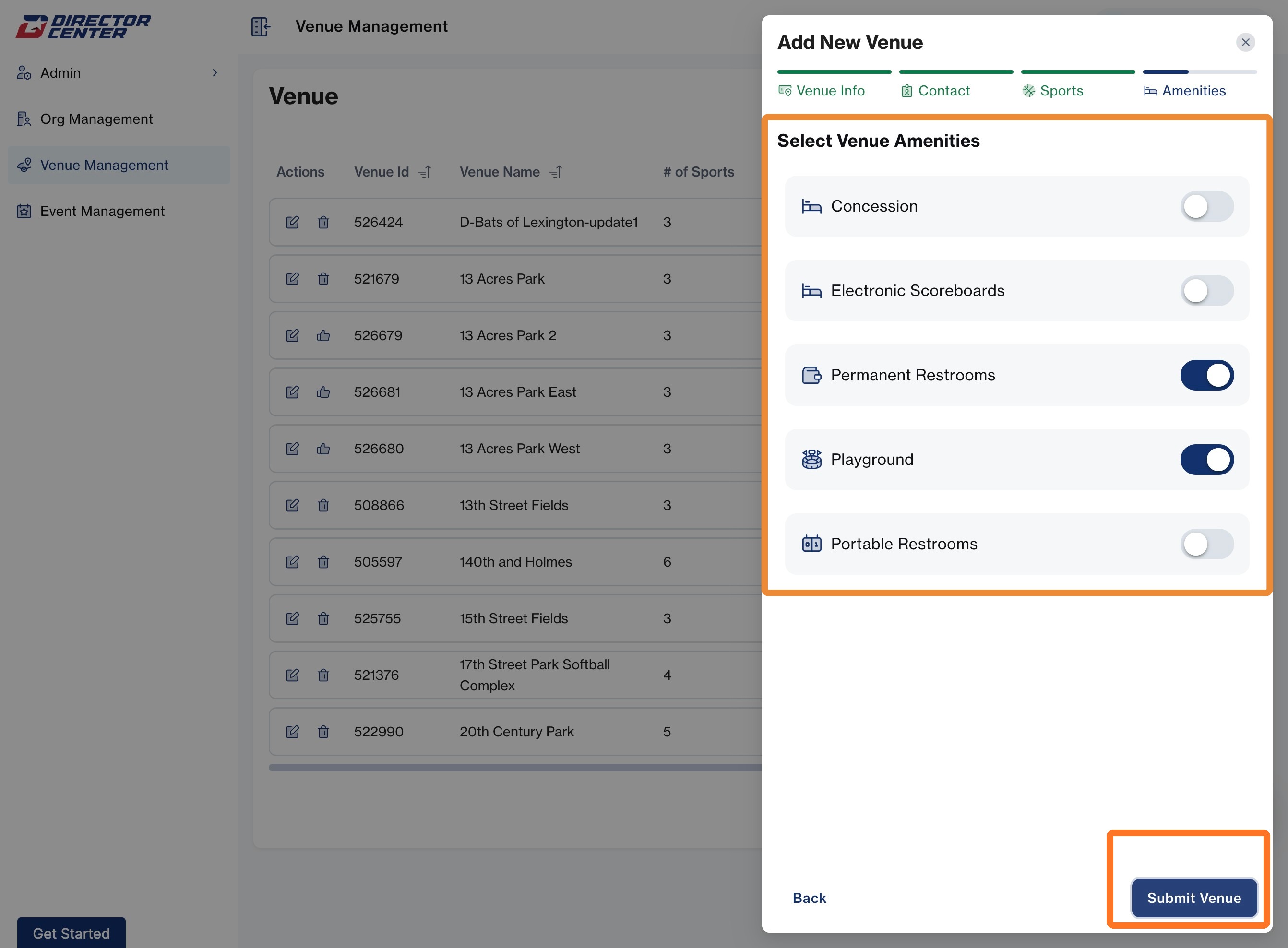
7. Mark the checkboxes for the Venue Amenities then click Submit
Add a Field at this Venue
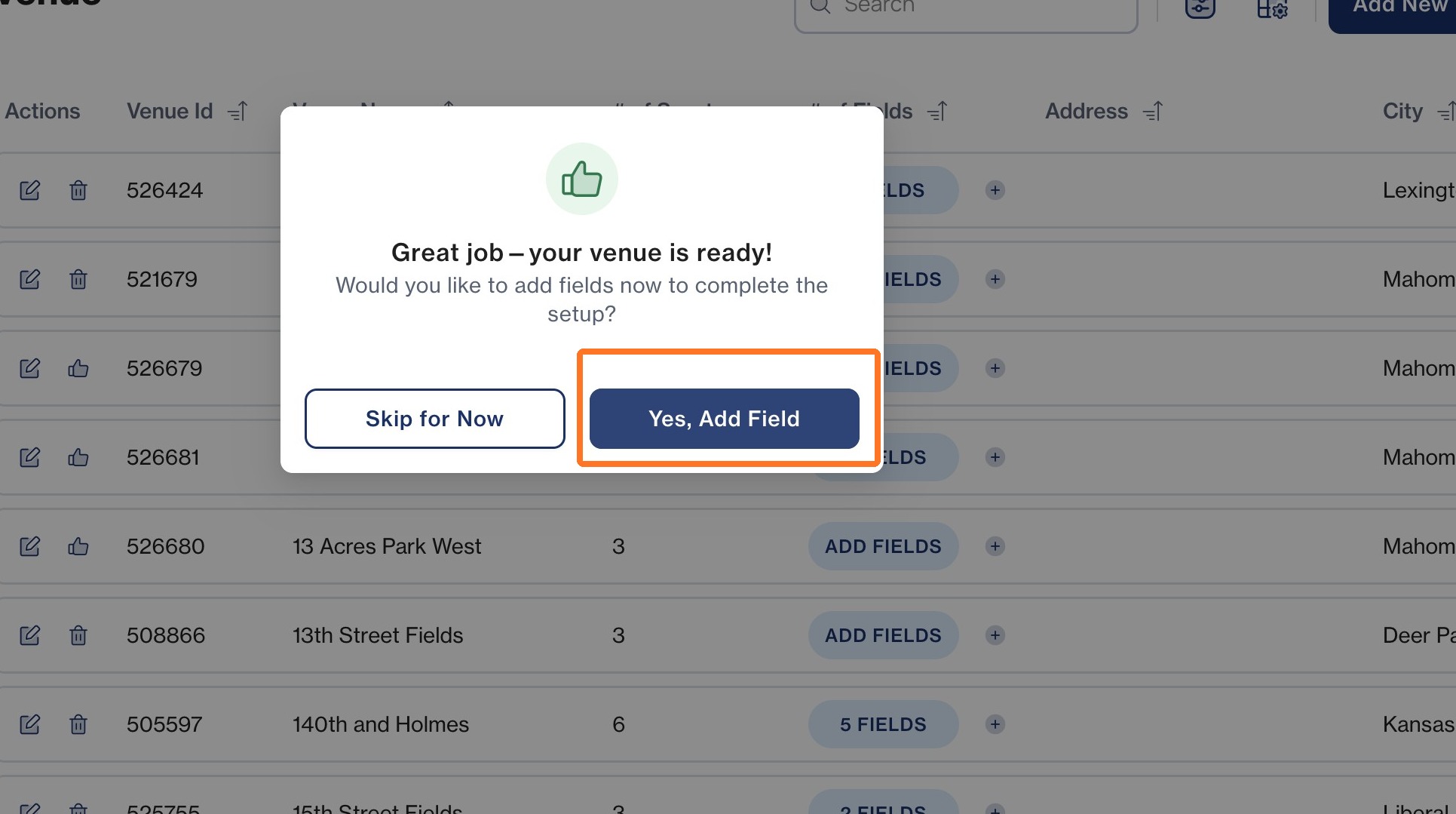
8. To add fields within this submitted venue, click "Yes, Add Field"
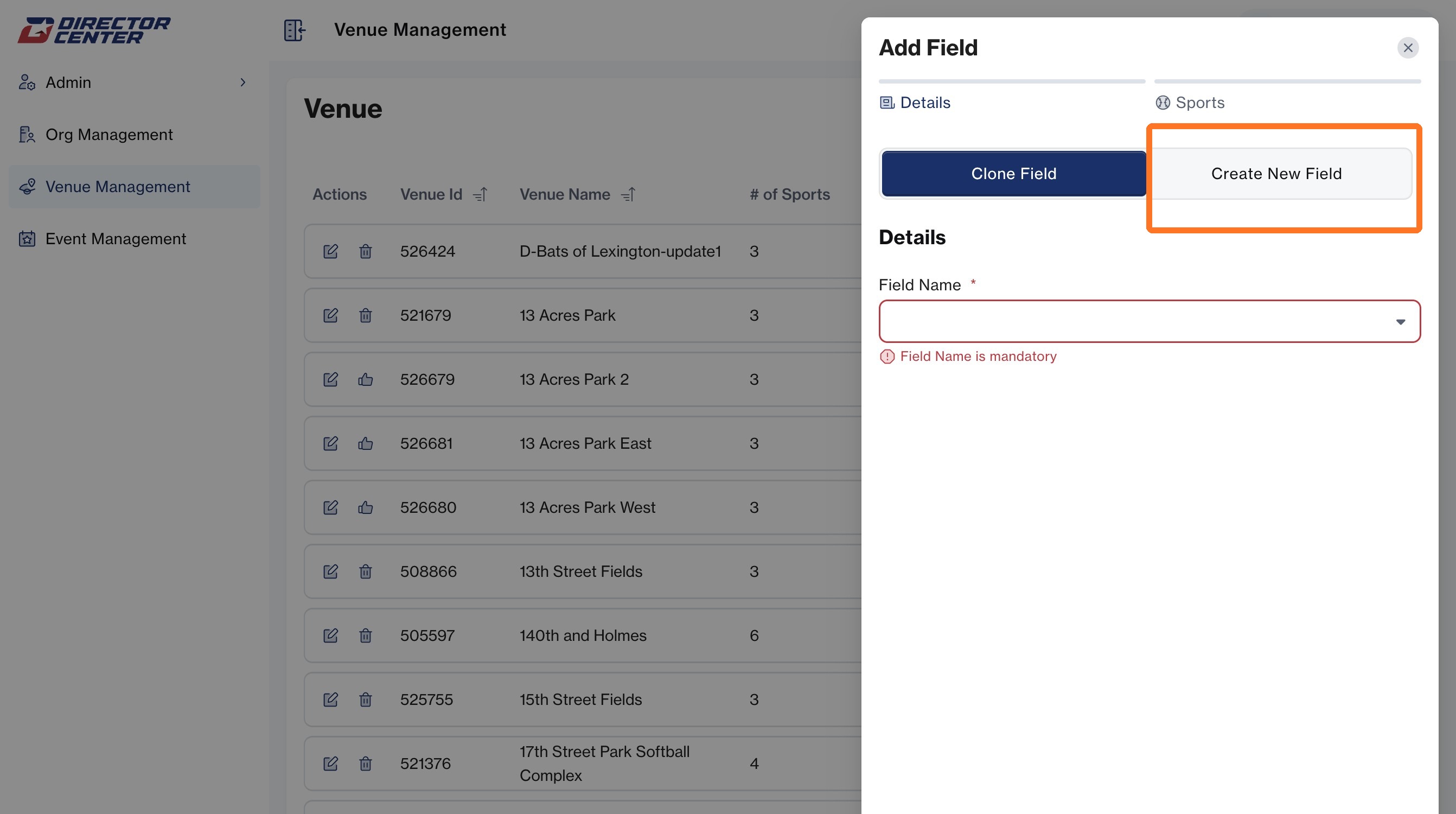
9. If you are not cloning an existing field, click the Create New Field tab
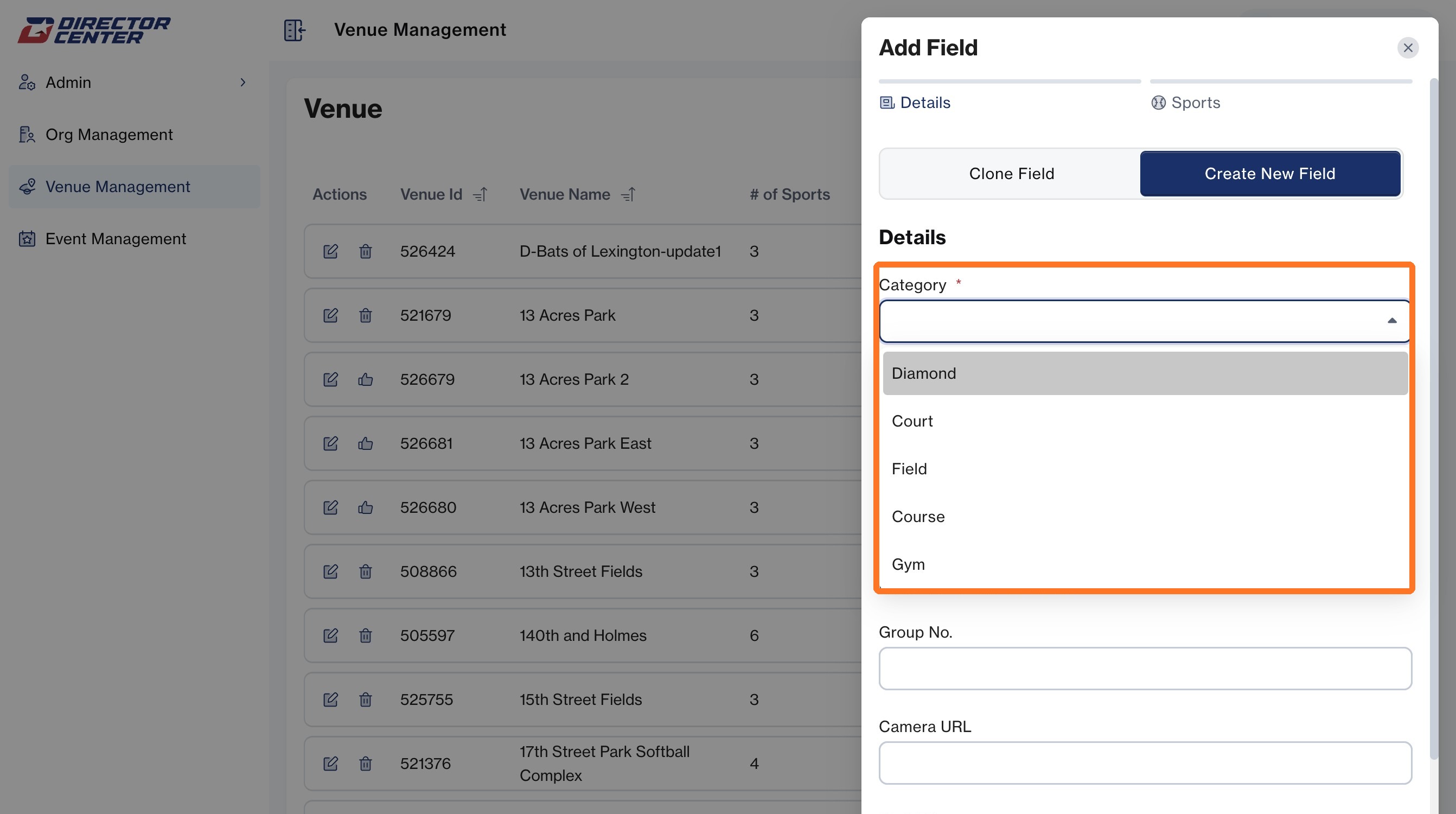
10. Select the Category for this new field
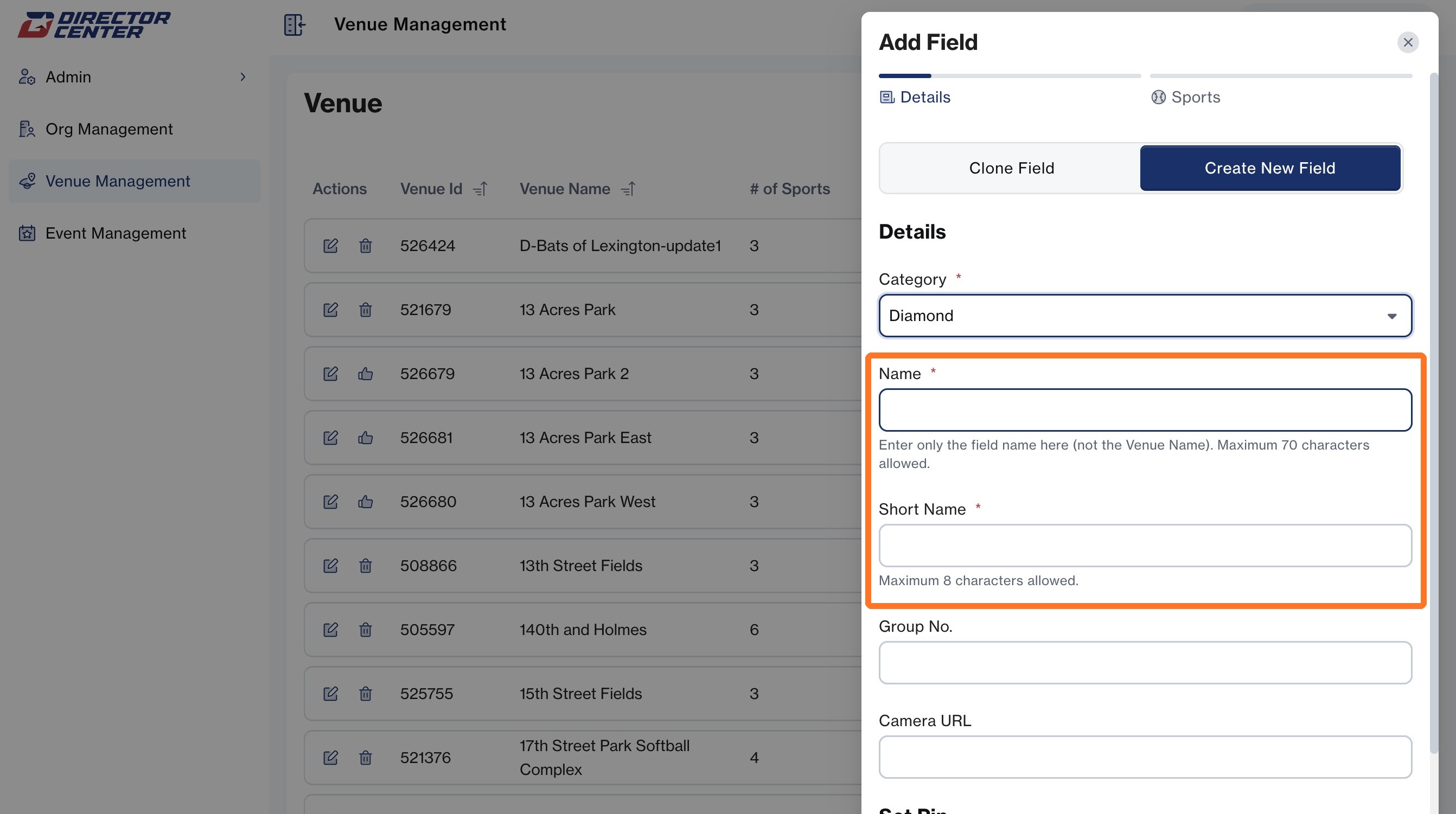
11. Enter both the Name of the Field and a Short Name
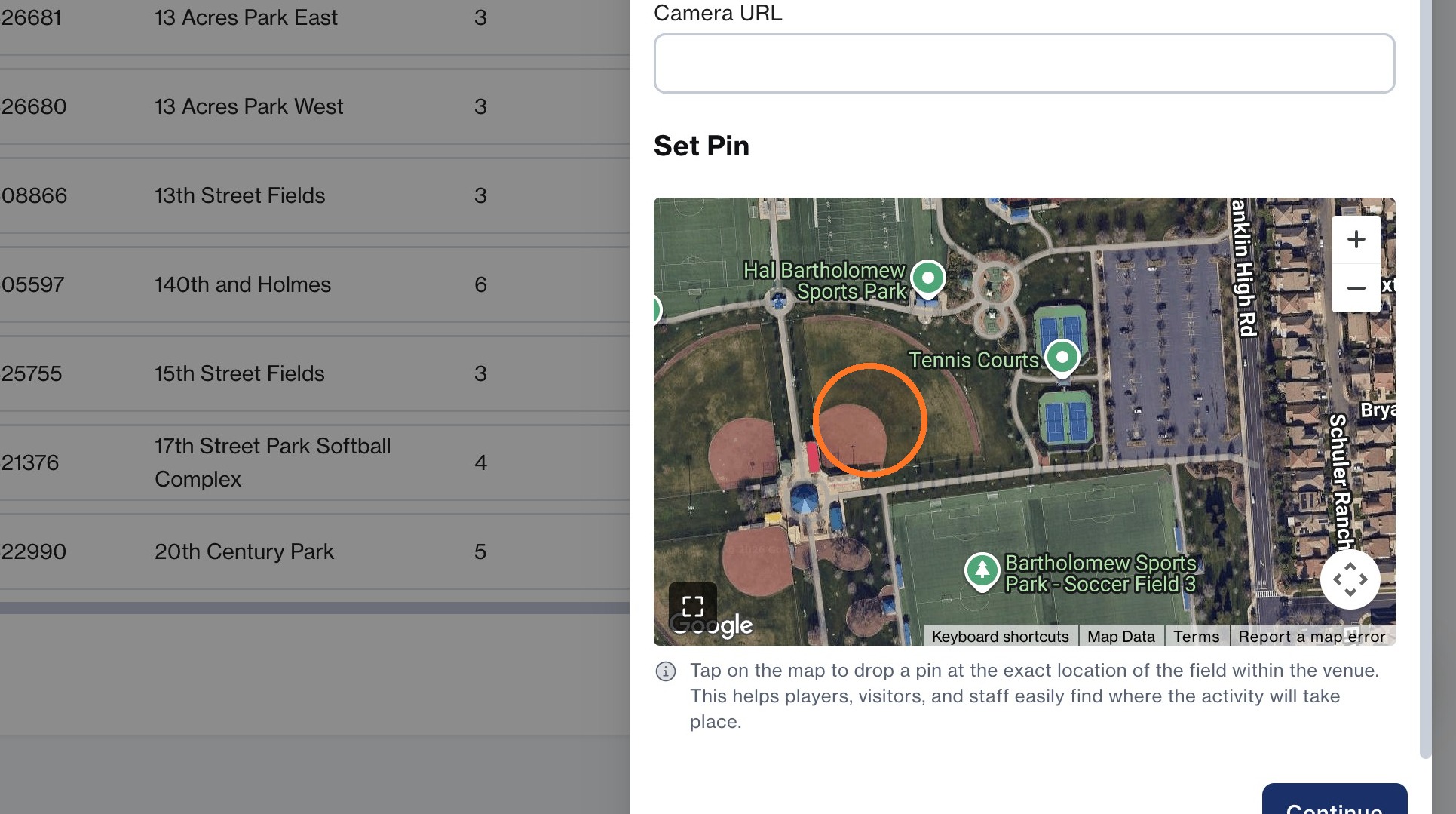
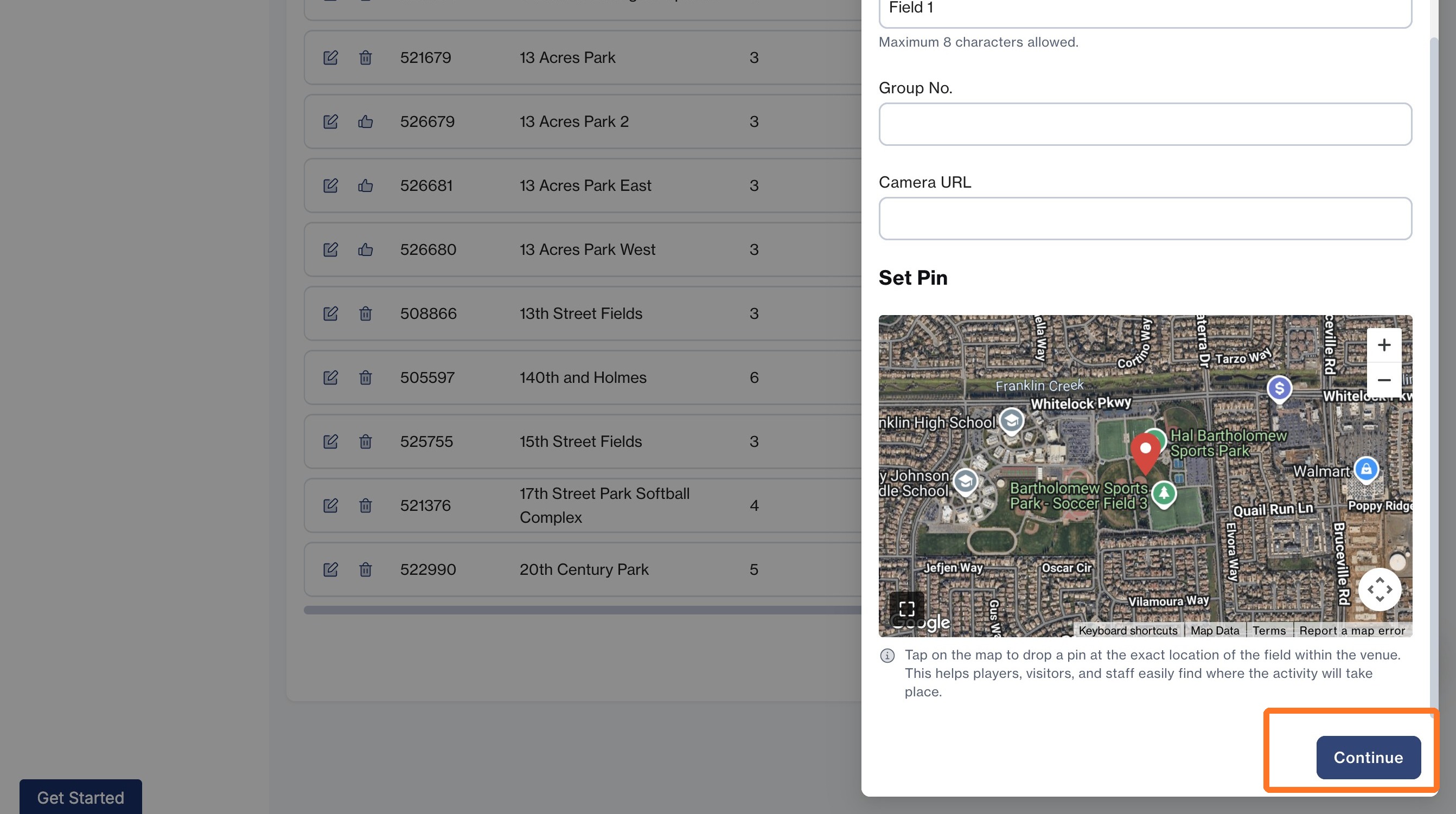
12. Zoom into the map to pin where the field is located within this venue
13. Click Continue
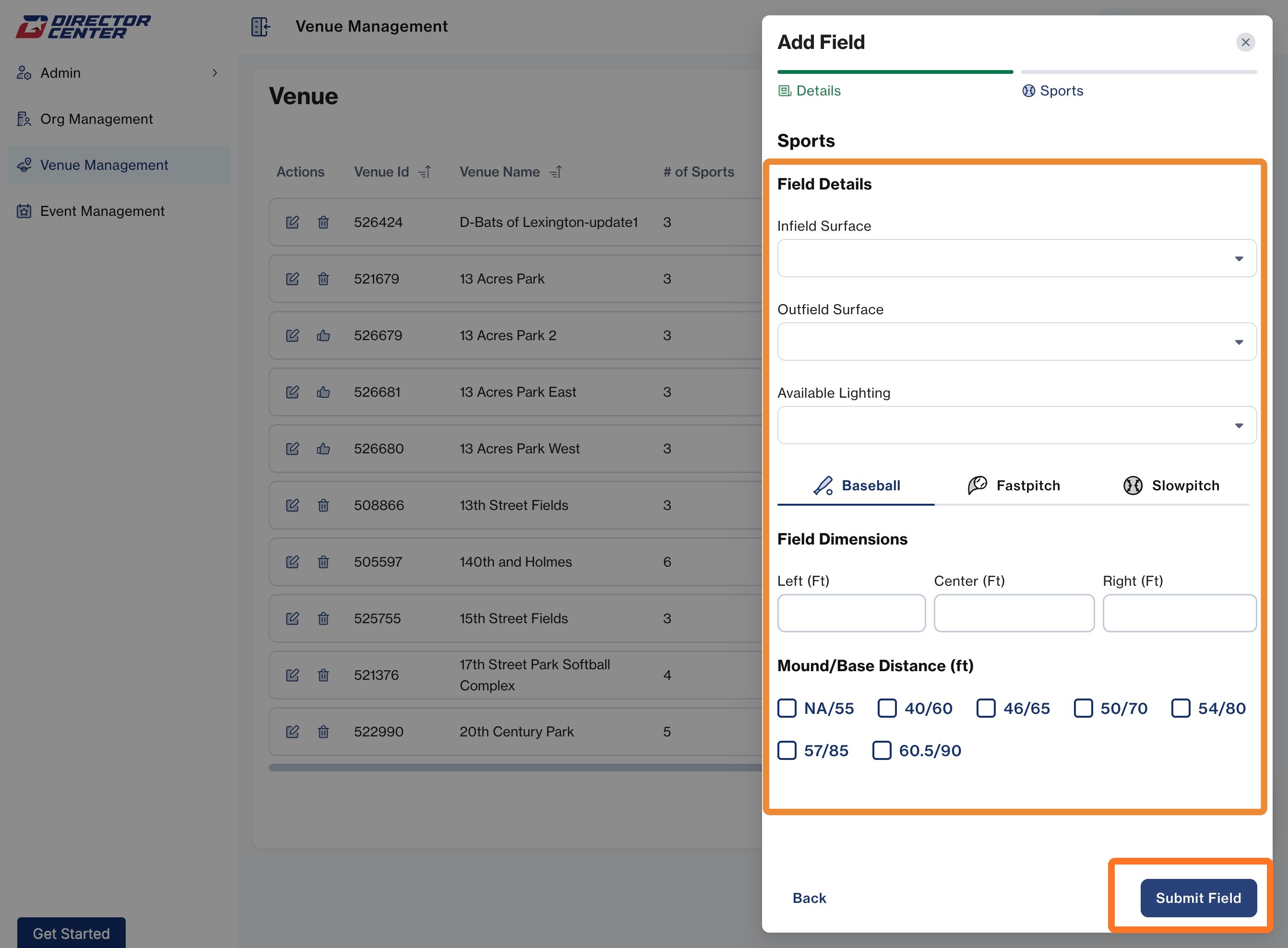
14. Enter the Field Details and Dimensions for the available sport(s) then click Submit